Peplink Router for RV Internet: Starlink + Cellular Failover Setup (2026)
Quick Answer
- Use a Peplink multi-WAN router to combine Starlink + cellular so your RV internet stays online when one link drops.
- Configure Hot Failover if you want Starlink primary + cellular backup; choose Load Balancing if you want to share traffic across links.
- Enable Starlink Bypass Mode when you want Peplink to handle routing/NAT (typical best practice).
- Add reliability with WAN health checks (pings) and realistic bandwidth limits per link.
- Consider SpeedFusion bonding only if you must keep calls/streams stable through brief drops.
- Add a third option using Wi-Fi-as-WAN for campground networks (when practical). Mobile Internet Resource Center
- Always verify current Starlink Roam terms (plan names and in-motion availability can change).
The RV Internet Problem ( Why Multi-WAN Wins)
RVers rarely have a “single perfect connection.” What you actually get is a rotating mix of good days and bad days:
- Campground Wi-Fi is often overloaded, throttled, or blocked by captive portals.
- Cellular can be great—until you hit dead zones, tower congestion, or deprioritization.
- Starlink can be excellent—until you’re under trees, parked too close to obstructions, or ride through a brief network event.
The practical fix is redundancy: keep two (or three) ways online and let your router switch automatically so you don’t manually toggle hotspots, reboot gear, or lose work calls.
Who This Setup Is For / Not For
Best for
- Remote work RVers who need “always-on” connectivity (Zoom/VoIP, VPN, cloud apps)
- Families streaming on the road
- Full-timers crossing variable cellular coverage zones
- Anyone who wants automatic failover without manual switching
Not ideal for
- Budget builds that can tolerate downtime
- RVers who rarely need internet beyond messaging
- Anyone who wants “plug-and-play” with zero setup (multi-WAN needs basic configuration)
Key Terms (Short Definitions for Beginners)
- WAN / Multi-WAN: Multiple internet sources feeding one router (Starlink + LTE/5G + Wi-Fi).
- Hot Failover: One link is primary; the router switches to a backup when the primary fails.
- Load Balancing: Spreads traffic across links to improve overall capacity and resilience.
- Bonding (SpeedFusion): Combines links into one “virtual” link to help keep sessions stable when a link drops.
- Health Check: The router tests a link (often via ping/HTTP checks) to decide if it’s usable.
- Wi-Fi-as-WAN: Using an external Wi-Fi network as an internet input.
- Bypass Mode (Starlink): Disables Starlink router Wi-Fi/routing so a third-party router (your Peplink) can take over.
Decision Framework
Use this to choose a configuration that matches your real-life RV usage:
- If you want the simplest reliability: Starlink (primary) + cellular (backup) → Hot Failover
- If you want more total household capacity: Starlink + cellular together → Load Balancing
- If you must keep calls stable through brief drops: consider SpeedFusion bonding
- If you frequently park under trees: prioritize cellular antennas + flexible Starlink placement
- If you travel full-time: prioritize dual-carrier cellular (two SIMs or SIM + hotspot)
What You Need (Hardware Checklist)
Minimum reliable setup
- Peplink multi-WAN router (choose a model based on how many WANs/SIMs you need)
- Starlink with Ethernet connectivity (some kits require an adapter; confirm for your hardware)
- At least one cellular source (built-in modem router or tethered hotspot)
- 12V/DC power plan (stable power, correct fusing, clean wiring)
Recommended upgrades (what makes the difference in the field)
- Two carrier options (commonly Verizon + AT&T or Verizon + T-Mobile in the U.S.)
- Roof-mounted MIMO antenna for cellular (better signal quality than indoor-only antennas)
- A way to place Starlink with clear sky view (tripod/pole/roof mount—based on your RV and travel style)
A practical “Top 3” Peplink model picker (common RV choices)
These are examples, not the only good options—Peplink’s lineup changes and you should match features to your needs.
- MAX Transit (dual-cellular class) – strong fit for full-timers who want dual cellular plus Starlink integration; designed for mobile deployments.
- MAX BR1 Pro 5G (single-cellular, high performance) – strong fit if you want one great cellular modem + Starlink as the second WAN.
- Balance series (WAN-focused router) – strong fit if your cellular comes from external modems/hotspots and you mainly want routing/policy control.
Optional “multiple SIM” expansion (advanced)
- Peplink SIM Injector can add additional SIM capacity for multi-carrier flexibility in certain deployments.
If you want a proven redundancy setup, start with a Peplink model that supports the WAN count you actually need
Starlink for RV: Plans & Practical Limits
For RV travel, you’ll typically be looking at Starlink Roam, which currently shows two plan options on Starlink’s Roam page: Roam 50GB and Roam Unlimited.
Quick plan overview (U.S. examples shown on Starlink Roam page)
- Roam 50GB: $50/month, includes 50GB; additional data can be purchased by the GB.
- Roam Unlimited: $165/month, no data cap shown.
- Standby Mode: Starlink Roam highlights “Pause Anytime with Standby Mode” (implementation details can vary—verify in your account/app).
Starlink Mini vs Standard kit (why hardware choice matters)
Starlink’s Roam page currently promotes both Mini and Standard kits, and describes the Mini as compact with lower power consumption and DC power input.
Plan decision mini-table
| Use case | Recommended starting point | Why |
|---|---|---|
| Occasional weekend trips | Roam 50GB | Lower monthly cost; enough data for “normal” travel use if you manage streaming. |
| Frequent travel / full-time | Roam Unlimited | Simplifies usage and reduces the chance you “hit the ceiling” mid-month. |
| You need in-motion use | Verify current Roam in-motion rules first | Starlink supports in-motion in authorized locations and terms can include speed limits; restrictions vary by region/country. |
| Coastal/offshore needs | Verify coverage and “ocean/coastal” terms | Roam terms and coverage rules can change; confirm for your route before you rely on it. |
Freshness note (required): Starlink plan names, prioritization rules, and in-motion availability can change. Verify current terms directly on Starlink before purchase or route planning.
Cellular Backup: How to Make It Actually Work
Why “one carrier” is not true redundancy
If your only backup is one carrier, you will eventually find a campsite where that carrier is weak or overloaded. True redundancy usually means:
- Starlink for broad coverage
- Two carrier options for cellular (even if one is “emergency backup only”)
Cellular options (choose your path)
- Peplink with built-in LTE/5G modem(s): Cleanest install and best integration for failover/load balancing.
- Tethered hotspot as WAN (USB/Wi-Fi): Often cheaper to start, but can be less stable and may add complexity.
- Phone tether as emergency WAN: Great as a last resort; not ideal as your primary backup.
Antennas & boosters (simple guidance)
- Roof MIMO antenna: Often the most meaningful cellular upgrade for RVers (better signal quality vs indoor-only antennas).
- Booster: Can help in weak-signal areas, but won’t fix tower congestion and can be less effective if you already have strong signal.
- Placement: Keep cable runs reasonable, avoid pinch points, and seal roof penetrations correctly.
Recommended add-ons that often matter more than the router itself: a roof MIMO antenna, clean 12V power, and a second carrier plan.
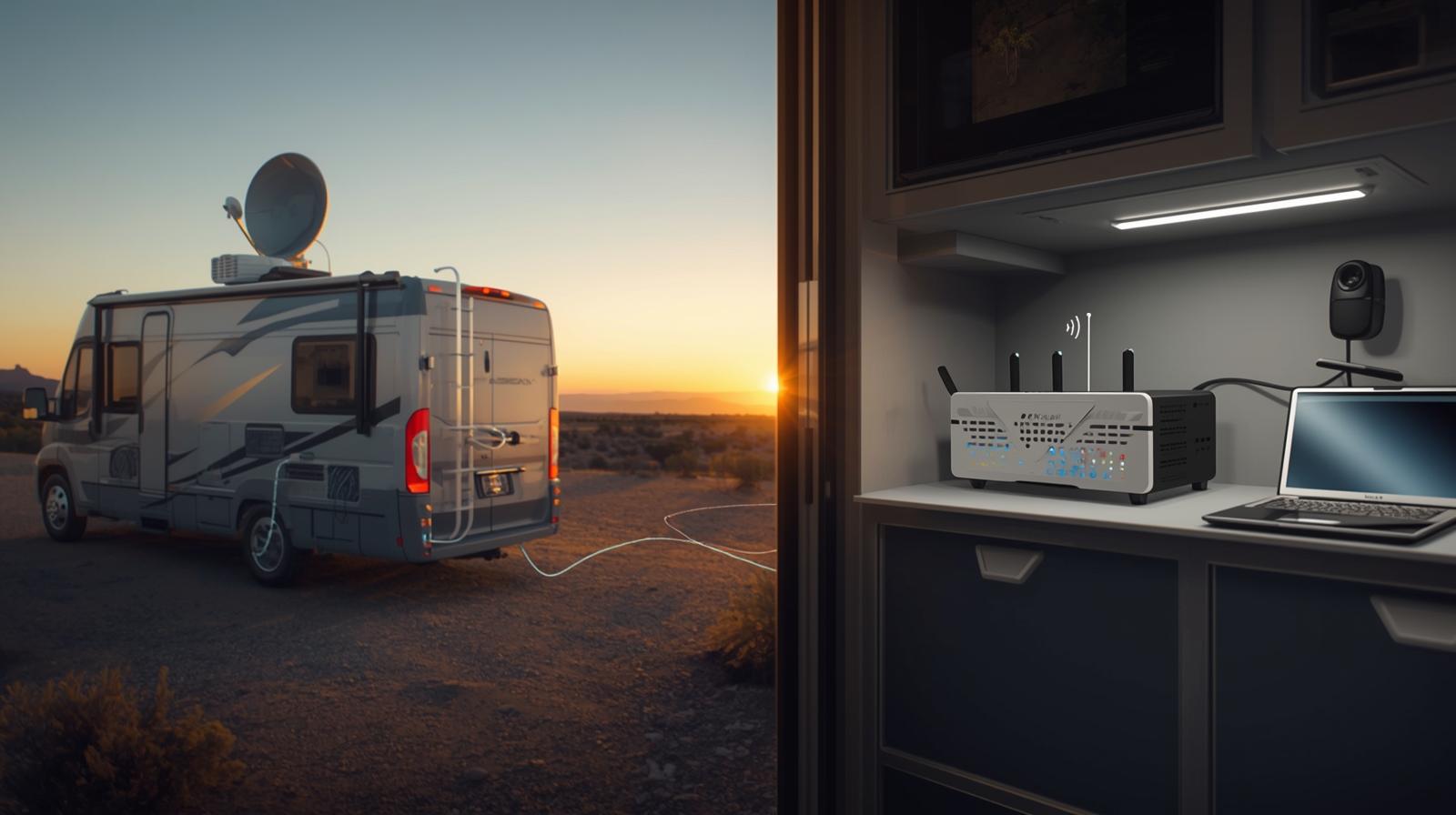
Physical Setup: Starlink → Peplink + Cellular (Steps Only)
- Position the Starlink dish with the clearest sky view you can (obstructions are the #1 performance killer).
- Confirm your Starlink hardware supports an Ethernet handoff (some setups require an adapter).
- Connect Starlink’s Ethernet output to a Peplink WAN port.
- In the Starlink app, enable Bypass Mode if you want Peplink to be the primary router.
- Insert your cellular SIM(s) into the Peplink (or connect your hotspot/modem as a WAN).
- Install external cellular antennas (roof mount preferred) and route cables cleanly.
- Power the Peplink from RV DC power using correct fusing and manufacturer guidance (verify your model’s input range on its datasheet).
- Connect to the Peplink admin dashboard and confirm you have internet on each WAN.
Starlink Bypass Mode (When and Why)
Recommended default
If you’re using Peplink as your “brain,” Bypass Mode is typically the cleanest network design: Starlink stops doing Wi-Fi/routing and Peplink handles routing, firewall, Wi-Fi networks, policies, and failover.
What Bypass Mode changes
- Starlink router Wi-Fi is disabled
- Your Peplink becomes the primary router/NAT device
Important detail
To disable Bypass Mode, Starlink notes that you may need to perform a factory reset. Starlink
Peplink Configuration: Multi-WAN Basics (Beginner-Friendly)
A) Name your WANs and set roles
A simple naming scheme prevents confusion later:
- WAN1: Starlink
- WAN2: Cellular (Carrier A)
- WAN3 (optional): Cellular (Carrier B) or Wi-Fi-as-WAN
B) Health checks (the key to reliable failover)
Health checks determine whether Peplink considers a link “up” or “down.”
Best practice for beginners:
- Use multiple targets (for example, public DNS + a reliable website)
- Avoid making checks so aggressive that the router “flaps” between links
C) Bandwidth limits (prevents bad load balancing decisions)
For load balancing, Peplink needs realistic upload/download values per WAN so it can make good decisions.
- Starlink speeds vary by congestion and location
- Cellular speeds vary by signal quality and tower load
So start with conservative numbers, then refine after real-world testing.
Hot Failover vs Load Balancing (Explain Like I’m Busy)
Hot Failover (priority-based)
Best for: remote work reliability, predictable behavior
Typical setup: Starlink primary → cellular backup
What it feels like: Your network usually stays on Starlink; cellular “wakes up” when Starlink fails health checks.
Load Balancing (sharing traffic)
Best for: families, streaming + downloads, multi-device households
What it feels like: Some devices/flows go out Starlink, others out cellular—based on your policy and load balancing algorithm.
Critical note: Load balancing does not automatically “merge speeds” for a single video call unless you use bonding.
Mini comparison table
| Feature | Hot Failover | Load Balancing |
|---|---|---|
| Simplicity | High | Medium |
| Best for Zoom/VoIP | Good | Mixed |
| Uses both links at once | No | Yes |
| Needs careful bandwidth config | Medium | High |
Optional: SpeedFusion Bonding (When It’s Worth It)
Consider bonding if you need:
- More continuity for sessions (video calls, live streams, VPN sessions)
- Smoother experience through brief drops and micro-outages
Not necessary if:
- You mostly browse, download, and stream buffered video
- You want the lowest complexity and cost
Where SpeedFusion Connect fits
Peplink offers SpeedFusion Connect options that can be used for certain VPN/bonding use cases, with plan structures published by Peplink.
Wi-Fi-as-WAN (Campground Wi-Fi as a Third Link)
When it helps
- The park Wi-Fi is usable and you want to conserve cellular data
- You want a “third link” for non-critical browsing devices
When it’s not worth it
- Captive portals break connectivity
- Weak signal or congested Wi-Fi makes your network worse
If you plan to use Wi-Fi-as-WAN regularly, consider Peplink-specific optimization approaches (including “Synergy” style designs) rather than treating campground Wi-Fi as a stable primary link.
Example Setups (Make It Feel Real)
Setup A: “Simple Reliable”
- Starlink primary + one cellular backup (Hot Failover)
- Best for: weekend RVers who work occasionally and want minimal complexity
Setup B: “Full-Time Pro”
- Starlink + dual-carrier cellular + roof MIMO antenna
- Policies: work traffic prioritized; streaming allowed on best link
Setup C: “Advanced Continuity”
- Starlink + cellular + SpeedFusion bonding (where appropriate)
- Best for: heavy VoIP users and creators who can’t tolerate session drops
Troubleshooting & Best Practices
Common issues (and what to check first)
- Failover doesn’t trigger: health checks aren’t failing, or WAN priority isn’t set as expected
- Load balancing feels worse: bandwidth limits are unrealistic, or policies route sensitive traffic unpredictably
- Starlink performance is inconsistent: obstructions, placement, or congestion (move the dish before you blame the router)
- Cellular is slow: signal quality (antenna), tower congestion, or plan deprioritization
Best practices checklist
- Keep Peplink firmware updated—Peplink has added Starlink-aware enhancements over time, including WAN policy improvements like the updated “Least Used” outbound policy designed for multi-WAN scenarios involving Starlink.
- Monitor WAN status and configure alerts (especially if you travel full-time)
- Track data usage per WAN (especially on capped cellular or Roam 50GB)
- Test failover monthly (intentional unplug test so you’re not learning during an emergency)
Starlink-aware management (optional)
Peplink highlights Starlink integration that can include controls like antenna stow/unstow within their management ecosystem (model/firmware dependent).
Comparison: Alternatives to Peplink
| Option | Best for | Pros | Cons |
|---|---|---|---|
| Peplink | RV multi-WAN + policy routing | strong failover/load balancing, mature ecosystem | cost + setup learning curve |
| Cradlepoint | enterprise/fleet style deployments | deep management + carrier programs | expensive; may be overkill for RVers |
| MoFi | DIY-centric RVers | good value in some models | feature depth/support varies by model |
| Travel routers | casual trips | cheap | limited multi-WAN reliability and controls |
Cost & Complexity Reality Check (Authority Builder)
What it typically costs (in real life)
- Upfront: Starlink kit + Peplink router + antennas/mounting
- Monthly: Starlink Roam plan + at least one cellular plan (often two for real redundancy)
- Optional: bonding services or cloud management subscriptions (depends on model and support plan)
InControl / support plans (what to know)
Peplink’s PrimeCare is positioned as a subscription plan that bundles InControl, warranty, and SpeedFusion-related capabilities for certain “PRM” devices.
Retail pricing varies by model and seller, but PrimeCare listings commonly start around the low double-digits per year for some entry models and scale up for higher tiers.
FAQ (People Also Ask)
1) How do I connect a Starlink dish to a Peplink router?
Use Starlink’s Ethernet handoff (adapter or built-in Ethernet depending on your kit), plug it into a Peplink WAN port, then let Peplink manage routing (typically by enabling Bypass Mode).
2) Can a Peplink router automatically switch from Starlink to cellular?
Yes—this is a core multi-WAN use case. Configure WAN priorities and health checks so Peplink marks a link “down” and fails over automatically.
3) Do I need to enable Starlink’s bypass mode when using Peplink?
Most RVers should. Bypass Mode disables Starlink router Wi-Fi/routing so Peplink can do routing, firewall, and network policies cleanly.
4) Which Starlink plan should I use for RV travel?
For occasional trips, Roam 50GB is designed for lighter use; for frequent travel, Roam Unlimited is designed for ongoing travel use. Verify current pricing/terms on Starlink before buying.
5) Are Peplink routers better than Cradlepoint or MoFi for RV internet?
Peplink is often favored for RV multi-WAN flexibility and policy control. Cradlepoint can be excellent for enterprise/fleet deployments; MoFi can be strong value depending on the model.
6) Which Peplink model is recommended for full-time RV use?
A common full-time approach is a dual-cellular class device (Transit family) plus Starlink, or a high-performance single cellular (BR1 Pro 5G) plus Starlink—depending on how much cellular redundancy you need.
7) Can I use Starlink while driving in an RV?
Starlink supports in-motion use in authorized locations, and restrictions can be region/country dependent. Verify the current in-motion rules before relying on it for your route.
8) How do load balancing and failover differ on Peplink?
Failover uses one primary link and switches when it fails; load balancing shares traffic across links. Bonding is the option that targets session continuity.
9) What antennas do I need with a Peplink router?
If cellular matters, a roof-mounted MIMO antenna is the most common high-impact upgrade. Add a booster only if you’re consistently in weak-signal areas.
10) Is SpeedFusion bonding necessary for RVs?
Not for most RVers. It’s primarily for people who need stable sessions through brief drops (calls, live streaming, sensitive VPN workflows).
11) Can I bond two Starlink connections with Peplink?
Some advanced deployments do multi-terminal designs, but it’s typically expensive and not necessary for most RVers. Most users get more benefit from Starlink + dual-carrier cellular redundancy.
12) How do I use Wi-Fi-as-WAN on a Peplink?
You configure an external Wi-Fi source as a WAN and treat it as “opportunistic.” Expect captive portals and weaker reliability than Starlink/cellular.
13) What data plan should I get for cellular backup in my Peplink?
Prioritize plans that explicitly allow hotspot/router usage and consider a second carrier for true redundancy. Watch for deprioritization and “high-speed data” limits.
14) How much does Peplink InControl management cost?
It depends on model and support plan. PrimeCare is a common bundle that includes InControl for certain devices; pricing varies by model and seller.
15) How has Starlink’s RV (Roam) plan changed recently?
Starlink’s plan names and lineup have changed multiple times in recent years. The safest approach is to treat plan naming as a “freshness risk” and verify directly on Starlink at time of purchase.
21) How We Evaluated + Limitations + Safety
How we evaluated
- Focused on real RV outcomes: continuity, failover behavior, and session stability
- Prioritized practical install factors: power, antennas, mounting, travel variability
- Designed the setup around beginner-friendly defaults: Hot Failover first, then load balancing
- Highlighted vendor-documented capabilities for Starlink + Peplink integration
Limitations (important)
- Coverage, plan terms, and in-motion rules change. Always verify before relying on them.
- Performance depends on congestion, terrain, obstructions, and install quality
- Cellular plan fine print varies (priority data, deprioritization, hotspot/router allowances)
Safety reminder
Roof work and electrical wiring can be hazardous—consult a qualified installer if you’re not confident.
Note on sources
I relied on Starlink’s official Roam pages/support/legal documentation and Peplink’s official firmware/solutions pages for “freshness-sensitive” facts (plans, bypass mode, firmware features).